ALT_IMG

Featured 1

Lorem ipsum dolor sit amet, consectetuer adipiscing elit, sed diam nonummy nibh euismod tincidunt ut laoreet dolore magna aliquam erat volutpat. Ut wisi enim ad minim veniam, quis nostrud exerci tation ullamcorper suscipit lobortis nisl ut aliquip ex ea commodo consequat Readmore...

ALT_IMG

Featured 2

Lorem ipsum dolor sit amet, consectetuer adipiscing elit, sed diam nonummy nibh euismod tincidunt ut laoreet dolore magna aliquam erat volutpat. Ut wisi enim ad minim veniam, quis nostrud exerci tation ullamcorper suscipit lobortis nisl ut aliquip ex ea commodo consequat Readmore..

Alt img

Featured 4

Lorem ipsum dolor sit amet, consectetuer adipiscing elit, sed diam nonummy nibh euismod tincidunt ut laoreet dolore magna aliquam erat volutpat. Ut wisi enim ad minim veniam, quis nostrud exerci tation ullamcorper suscipit lobortis nisl ut aliquip ex ea commodo consequat Readmore...

ALT_IMG

Featured 4

Lorem ipsum dolor sit amet, consectetuer adipiscing elit, sed diam nonummy nibh euismod tincidunt ut laoreet dolore magna aliquam erat volutpat. Ut wisi enim ad minim veniam, quis nostrud exerci tation ullamcorper suscipit lobortis nisl ut aliquip ex ea commodo consequat Readmore...

ALT_IMG

Featured 5

Lorem ipsum dolor sit amet, consectetuer adipiscing elit, sed diam nonummy nibh euismod tincidunt ut laoreet dolore magna aliquam erat volutpat. Ut wisi enim ad minim veniam, quis nostrud exerci tation ullamcorper suscipit lobortis nisl ut aliquip ex ea commodo consequat Readmore...

Sunday, 7 October 2012

How to Delete the pagefile.sys file from Windows XP and Seven (w7) Local Disk Drive.

0 comments
Pagefile.sys file is created whenever we use our Internal Hard disk memory as external or Virtual RAM.

Also Check: How to make our Internal Hard-disk Memory as External RAM in WIndows.

1. Open System Properties Window
     Also See: How to open System property Window
2. Navigate to "Advanced" tab.
Note: For Window Seven users first click on "Advanced System setting" on the left side of system property screen and then go to "Advanced" tab.
3. On the "Performance" Section Choose "Setting".
4. On the open "Performance Option" window Navigate to "Advanced" tab.
5. On the "Virtual Memory" Section click on "change".
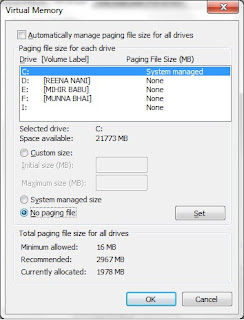
6. It will open Virtual Memory Window.
7. Uncheck the option "Automatically manage paging file size for all drives"
8. Now select the drive where pagefile.sys file is situated.
9. Now select "No paging file" and click on "Set".
10. Click on "OK". this will delete the pagefile.sys system file.

If more than one drive contain the pagefile.sys then complete the steps for each drive individually.

Other Similar articles that may interest you:

1. Add "open with notepad" as a shortcut to Context menu
2. How to take a screenshot from windows Desktop without using 3rd party software
3. How to correct system hangs during logon or startup of Window 7
4. Process to Hard-Reset or Format a Nokia-N-Series Mobile
5. How to start Private browsing in Google chrome Internet browser 
6. How to Increase speed of torrent download
7. Google Chrome offline installer free download
8. Window 7 ultimate Activator
9. How to create a bootable pendrive
10. How to change AM/PM symbol with your name in Window 7 task bar
Continue reading →

What is Pagefile.sys in Windows

1 comments

Pagefile.sys is the Windows Virtual Memory. It is created whenever our RAM needs some extra memory for the execution of program.Whenever we are using an application which need some extra Random Access Memory (RAM) than our available RAM then Windows automatically take some memory as virtual memory from our hard disk drive to use it as ram. then the pagefile .sys is created inside the Windows Drive.but sometimes we get that the speed of virtual memory Ram (pagefile.sys) is much slower than the actual Ram.


We find that windows can automatically assign virtual memory from our Windows drive automatically.Whenever windows creates pagefile.sys, its size is larger and very equal to the size of our installed ram.How ever we can also manually update or assign different memory size for different drive.

Note: Windows can not take an external device like USB to use as Virtual Memory.

Also Check: How to delete pagefile.sys in Windows 7?

Other similar articles that may interest you:

1. How to deactivate a facebook Account
2. Add remove folders from the Shortcuts of Favorite bar of wndow 7  
3. How to password protect Microsoft office document  
4. Change the default name of Windows Drive from Local disk to your name
5. Any To ISO Pro Latest with key full version free download
6. Typing Master Pro with key Free download
7.Latest Avast antivirus Pro with key Free download
8. How to make Window Seven Genuine
9. RemoveWat free download
10. Some Working keyboard shortcut keys on Microsoft Office front page 2010
Continue reading →
Saturday, 8 September 2012

How to chage the Default save format and location in MS office document (Word,Excel,Power point) in 2007-2010

0 comments
Microsoft Office Word 2007 and 2010 :

In Microsoft Office 2003 the default save format for word is *.doc, but in 2007 and 2010 Edition of Word it changes to *.docx. But We can also modify the default save format in MS office Word documents.
Process:
1. Open Microsoft Office Word 2007 or 2010.
(-> All Programs-> Microsoft Office-> Microsoft office Word 2007/2010)
2. Click on the Upper right corner of the Document Windows.
3. Choose "Word Option".
4 Navigate to "save" tab on the left pane of open window.
5. On the right pane you will find the two option "Save files in this format" and "Default file location"
6. On the "Save files format" you can modify he default save format (i.e. *.docx, *.docm, *.doc, *.dotx, *.dotm, *.dot, *.mht, *.mhtml, *.htm, *.html, *.rtf, *.txt, *.xml, *.wps )
7. on "default file location", Click on "Browse" and  change the default location to save the Word files.
8. Click on "OK". Thatis it. Restart the application you will able to see the changes.

Also Check: List of some Working Keyboard hot keys on Microsoft Office Word 2003,2007 and 2010 

Microsoft Office Excel 2007 and 2010:

In Microsoft Office 2003 the default save format for Excel document is *.xls, but in 2007 and 2010 Edition of Excel it changes to *.xlsx. But We can also modify the default save format in MS office Excel documents.
Process:
1. Open Microsoft Office Excel 2007 or 2010.
(-> All Programs-> Microsoft Office-> Microsoft office Excel 2007/2010)
2. Click on the Upper right corner of the Document Windows.
3. Choose "Excel Option".
4 Navigate to "save" tab on the left pane of open window.
5. On the right pane you will find the two option "Save files in this format" and "Default file location"
6. On the "Save files format" you can modify he default save format (i.e. *.xlsx, *.xlsm, *.xlsb,*.xls, *.xml,*.mht, *.mhtml, *.htm, *.html, *.txt, *.xml, *.xltm, *.xlt, *.xltx, *.csv, *.prn, *.dif, *.slk, *.xlam, *.xla)
7. On "default file location" option Click on "Browse" and  change the default location to save the Excel document files.
8. Click on "Ok". Thatis it. Restart the application you will able to see the changes.

Also Check: List of some Working Keyboard hot keys on Microsoft Office Excel 2003,2007 and 2010

Microsoft Office Power-point 2007 and 2010:

In Microsoft Office 2003 the default save format for Powerpoint Presentation is *.ppt, but in 2007 and 2010 Edition of PowerPoint it changes to *.pptx. But We can also modify the default save format in MS office Power-Point documents.
Process:
1. Open Microsoft Office Power Point 2007 or 2010.
(-> All Programs-> Microsoft Office-> Microsoft office Powerpoint 2007/2010)
2. Click on the Upper right corner of the Document Windows.
3. Choose "Power point Option".
4 Navigate to "save" tab on the left pane of open window.
5. On the right pane you will find the two option "Save files in this format" and "Default file location"
6. On the "Save files format" you can modify he default save format (i.e. *.pptx, *.ppt, *.pptm, *.potx, *.potm, *.pot)
7. On "Default file location" Click on "browse" and change the default location to save the Power Point Presentation files.
8. Click on "Ok". Thatis it. Restart the application you will able to see the changes.

Also Check: List of some Working Keyboard hot keys on Microsoft Office Power Point 2003,2007 and 2010

Other Similar Articles that may interest you:
1. RemoveWat Free download
2. How to back up the Windows Registry
3. Add "Change theme" option as a shortcut to context menu in Windows seven
4. Latest AVG PC tune up With key free download full version
5. Various process to delete the temporary files in Windows to increase the system performance
6. How to deactivate the facebook Account
7. How to change the name Local Disk in Windows Drive
8. Create a folder without any name or with a blank space
9. List Of common reasons why a system Hangs or Crash in Windows
10. Top considerable factors before buying a Laptop 
Continue reading →
Sunday, 15 July 2012

How to create Modify an User Account (Login) Password in Windows Xp, Vista and Seven

0 comments
User account Passwords create an security to our windows from unauthorized access. It will ask for enter password after the start-up logo of Windows on the Welcome Screen,

Also See: How to change the boot-Screen, log-in Screen and Strat up logo of Windows.
  How to add a warning or legal notice before the log in screen of Windows
Process:
1. Open Control panel (Category View)
2. Go to User Account and Family safety -> User Account
3. It will show your logged user Account.
4. Click on "create a Password for your Account".
5. it will ask to enter new password and confirm it by again enter the same password.
6. You can also add a password hint so that it is easy to guess the password if you forget.
7. Click on "create password".
8. Click on ok. that is it.

To modify the User account Password Just click on "Change Password" on step 4 and then follow the instructions.

How to Change the other Account password

One user can only change his password. He can not add or modify the other user account password. but only the "Administrator user" can modify the other account password.

Also See: What's an Administrator Account?
Steps:
1. Logged in As Administrator account.
2. Open Control panel (Category View)
3. Go to User Account and Family safety -> User Account -> Manage Another Account
4. it will show all available user accounts.
5. Now choose the user whose account type/ password or any other information you want to modify.

6, It will show all the information that you can modify on that account.
7. Here you can change the password, account name and type and also delete that account as a administrator.
8. Follow up the instruction and complete the process.

Other similar type of articles that may interest you:
1. How to create a invisible folder
2. How to change the look of VLC media player to windows media player
3. List of top ten internet web browser
4. How to change the position of detail pane from bottom to top
5. How to create automatic log-in without asking for password in windows
6. Various Way to delete the temporary files in windows to make your system faster
7. How to display the windows version on desktop
8. How to use VLC media player as a camera software  
9. Create a background photo and customize text color and icon of a Pendrive
10. Create shortcut for shut down, restart and logoff in windows

Some Working Mobile TRICKS

1. Some Special code on samsung Mobile
2. Some special code on nokia mobile
3. Break A samsung mobile password  
4. Get free missed call alert on BSNL mobile
5. Hard reset a nokia E series mobile
Continue reading →

What is an user Account in Windows (xp,Vista,Seven and Eight)?

0 comments
Definition of user Account:
   A User account is the set of information about the people who is accesing it that tells windows about the files, folder and restriction of uses of Windows. The restriction refers to the drives that an account will use, the application, websites or games that a user can view.
There are 3 types of user account.
1. Administrator
2. Standard User
3. Guest User
Also see: How to add or remove user Accounts in Windows

Each account of the Windows has different level of control.
Administrator: Administaror account has the full control over windows. they can manage the other users like standard and guest user.
Standard User: This account is made for personal use and it hs also no restriction if it is not restricted by an administrator.
Guest User: Guest user account are created for the temporary access of people. it is controlled by administrator and it has very limited access.

NOTE: Each of the above three account can be secured by creating password . Each account can create and modify their password but the administartor user can modify the password of the other two.

Also See: How to create user account password in Windows
                How to change the type of user Account in Windows
                How to break Administrator and User account Password in Windows

Some other similar articles that may interest you:

1. How to download a you tube video
2. How to make Window Seven Genuine
3. How to increase the speed of torrent download
4. How to break a bios password
5. How to add password on a RAR file
6. How to increase the speed/performance of computer
7. How to disable openfile security Warning
8. How to create automatic login Without asking for password
9. Use Vlc media player as a camera to take photo or record video
10. Add "take ownership" option to right click of mouse 
Continue reading →
Monday, 9 July 2012

Infiniti of Montclair -New and Used Cars - The quality of car depends on the dealer [Guest Post]

0 comments
Many people are in need to own a car due to various commitments in their day to day lives. There are so many dealers that have come into the market of selling cars. The market has become so diversified and car owners have an option to trade in their cars or even just sell of the cars to dealers. This in turn creates an amazing and affordable option for those who would be interested in used cars. Those who do not have to ensure cars that have already bred them. There are amazing and well paying ways of disposing your old car rather than letting it rot in the garage. This is a good way to also raise money to be able to meet other necessary projects that require your financial attention. Most dealers that have discovered this type of trade have become a preferred choice for both buyers and sellers of used cars. Every car is evaluated by experts and it is bought at the value that it is worth. Anyone who chooses to sell their car must do the basic cleaning and also ensure that most of the functions are working. This is one of the amazing ways to ensure that your car fetches you a good price. This is a more guaranteeing way of getting good money for your car as compared to when you choose to sell it privately. Most car dealers will not ask you to wait until your car finds a buyer; they will pay you as soon as you agree to the price. It is good to have a financial advisor so as to know which would the most appropriate move for you. You can choose to get another car after getting money for your old car. You will just need to top up the difference and you will be all sorted out. Most of the used cars at Infiniti of Montclair are as good as new.
Continue reading →
Monday, 2 July 2012

How to create remove User Accounts in Windows Xp, Vista and seven

0 comments
The process will describe how to add or remove user account in Windows Xp, Vista and Seven. The adding of more account will help people to make their data safe when the PC has multiple user
Also See: How to break a bios or cmos password

How to Add a User Account in Windows Xp, Vista, Seven

1. Open Control Panel (Change the view to "Category").
2. Go to "User Accounts and Family safety" -> "User Accounts" -> "Manage Another Account"
3. the open Window will show the number of users available in the Window.
4. Now click on "Create a New Acount ".
5. It will ask for the "user name" of the new account and the the type of the user Account i.e. Standard user or Administrator.
6. Click on Create Account.
The new Account will be created.

Also see: How to break the Administartor Password in Windows

How to remove a User Account in Windows Xp, Vista, Seven

1. Open Control Panel (Change the view to "Category").
2. Go to "User Accounts and Family safety" -> "User Accounts" -> "Manage Another Account"
3. the open Window will show the number of users available in the Window.
4. Choose the user Account that you Want to delete.
Note: The account you want to delete must not be an administrator account and you can not delete an logged Account.

Also See: How to change the Account type to Administrator from Standard User in Windows

5. Now choose "Delete the Account"
6. Now it will ask for whether you want to keep or not the user files, Choose the option that you want to desire.
7. Now choose delete Account.
8. Click on "ok"
The Account will be deleted.

Other similar articles that may interest you:

1. create a hidden and unsearchable folder in Windows
2. Break a bios or CMOS password
3. How to Download a you-tube video
4. How to increase the torrent download speed
5. Create a bootable USB
6. Google Chrome offline installer free download
7. Add "Copy to/ Move to folder" option to context menu of selected item
8. Break a samsung Mobile password without using 3rd party software
9. Shortcut keys or Hotkeys for adobe reader
10. Start Private browsing in Mozila Firefox  
Continue reading →

How to Change the type of User Account from Local or Standard to administrator and vice-versa in Windows XP, Vista and Seven

0 comments
Process:
1. Open Control Panel (Change the view to "Category").
2. Go to "User Accounts and Family safety" -> "User Accounts" -> "Manage Another Account"
3. The open Window will show the number of users available in the Window.

Also See: How to Add or Remove user Account in Windows

4. Choose the user Whose Account type you Want to Change.
5. Now it will open the Account setting for that User.
6. Choose "Change the Account type".
7. Now choose the type of Account that you Want to change i.e. Standard user or Administrator.
Note : You can not change the type of acount that you currently logged in.

Also See: How to change the boot screen, log in Screen and Strat up logo in Windows Xp, Vista and Seven.
8. Choose "Change Account type"
9. UAC prompt will conform your change by asking the Administrator Password.
10. Enter the and click on "OK".
The Account type of the User will be changed.

Other Similar Articles that may interest You:

1. How to Download a youtube video
2. How to increase the torrent download speed
3. Add "open With notepad" to context menu/right click of mouse of selected item in Windows
4. Add "Start Command prompt from here" to Context menu of selected item in Windows
5. How to add a photo to a video file in Windows
6. Create a bootable USB
7. How to remove the Arrow symbol from shortcuts in Windows
8. How to start Google Chrome Private Browsing
9. How to save a web page as pdf
10. IDM latest with Serial key free Download
Continue reading →
Friday, 15 June 2012

How to create Password on a RAR file using Winrar (Password protected RAR file)

0 comments
The process will help us to create a password protected File or Folder using 3rd party application named as "WinRAR". To do the below process first download and install the latest version of Winrar.

Also See: Winrar latest version free download with detail description of its features

Process:
1. Choose the file or Folder that you want to make password protected.
2. Right Click of mouse on it and Choose "Add to archieve" from the Winrar commands.If you not find the Add to archieve command then
Check: How to add "Add to Archieve" command of Winrar to Context menu
3. On the open Window navigate to "Advanced" tab.
4. Choose "Set password". And Give password to the RAR file.
5. Check the Option "Encrypt file names".
Note: If you check the option then Any body will try to open the RAR file then it will ask for password. If not then any body try to open the file or folder inside the RAR file then it will Ask for Password.
6. Now Click on "OK" and Save all the Changes.
7. A new RAR file will be created with the Same name of the file or folder which is password protected. Now delete the old.

Also See: How to create an Ultra hidden and Unsearchable folder in Windows

Other Similar articles that may interest you:
1. How to add "restart explorer" to Context menu of Windows
2. How to make a drive hidden unsearchable in Windows
3. Keyboard shortcut keys of VLC Media Player
4. How to use VLC Media player as a camera Software
5. How to take full snap shot of desktop in Windows without using 3rd party software
6. Samsung Galaxy Note (n7000) smartphone price and specification
7. How to start private Browsing in Google Chrome 
8. Avast Antivirus full version with serial key free download
9. Typing Master Pro v7.0 with serial key free download full version  
10. How to download you tube Video  
Continue reading →
Sunday, 3 June 2012

Samsung Galaxy Note (N7000) Specification and Price in India (the Best smartphone till now by Samsung)

0 comments
1.General Configuration:
(Band)
2G Network- GSM 850/900/1,800/1,900 MHz
3g Network- HSDPA 850/900/1900/2100 MHz
(Network and Data)
GPRS- 850/900/1,800/1,900 MHz
EDGE- 850/900/1,800/1,900 MHz
3G -  Hspa+ 21Mbps

Operating System: Android 2.3 (Gingerbread). Upgradable upto v4.x
Internet Browser: Android
CPU: Dual-core 1.4 GHz ARM Cortex-A9
Touch Screen- C type
Mobile Tracker: Mobile tracker v1.0

2. Physical Specification and Design:
Form factor- Full Touch
Weight- 178gm
Dimension - 146.85 x 82.95 x 9.65 mm

3. Display
Type- 13.44cm WXGA HD SAMOLED with 16M color depth
Size-800 x 1280 pixels, 5.3 inches (~285 ppi pixel density)

4. Battery
Type: Standard battery, Li-Ion 2500 mAh
Talk-time:  up to 26hr (2G) and up to 13hr (3G)
Standby: up to 960hr (2G) and up to 820hr (3G)

5. Camera:
Primary: 8 MP, 3264x2448 pixels, auto focus, LED flash, 4x optical zoom
features: Support Auto Focus / Flash / Smile Detection / Blink Detection / Anti-Shake and ISO standards Auto/100/200/400/800
Secondary: Available 2 MP

6. Music and Video:
 Video Device: Touch/3-key/S-pen (1920x1080) with 30fps frame rate and 4x optical zoom (No zoom with 1080)
Video Player: 3GPP/H263/H264/mPEG4/WMV
Video Recording: CIF/QCIF/QVGA/VGA/HD/Full HD (Recording) and supports video editing also.
Video supports Messaging(H263+amr NB), Streaming and Telephony (AMR-NB/H.263/MPEG4)
Music player supports 3GP / AAC / AAC+ / AMR / AMR-NB / eAAC+ / H.263 / MP3 / MPEG4.
Alert type: Mp3, Wav  ringtone and Vibration
Supports loudspeaker and 3D sound technology on earphone
Earphone type: 3.5 mm jack

7. Features
Messaging: SMS(threaded view), MMS, Email, Push Mail, IM, RSS
Connectivity: Bluetooth(3.0), USB 2.0., Wifi a/g/b/n, 2.4 /5 GHz, WAP, USB Mass Storage, AGPS, TV output (MHL), PC sync Application (Kies)
Calender: Available with scheduler, to do list, clock, World time,  Alarm, Calculator, Memo book, Stop Watch, Count down timer
Call functions: Available speaker phone, Voice recognition, Caller ID, CAll time, Multiparty and can save up to 500 Dialled/Missed and received calls.
Also Available Google Search, Maps, Gmail,YouTube, Calendar, Google Talk, Picasa integration with Voice memo/dial/commands
You can also download various applications on Google Android play Store.

Other Similar articles that may Interest you:
1. How to break a samsung mobile Password
2. Some shortcut keys on Samsung Mobile  
3. Some Shortcut keys on Nokia Mobile
4. How to get missed call alert free in BSNL Mobile  
5. How to break an Administartor Password without using 3rd party application  
6. How to Add "task manager" to the right click of mouse or in the context menu
7. How to create a "CON" folder without using Command Prompt
8. How to take a full snap shot from desktop without using any 3rd party application
9. How to use Picassa Picture Viewer as a Camera Software
10. How to remove the arrow symbol from te shortcuts 
Continue reading →

Followers