ALT_IMG

Featured 1

Lorem ipsum dolor sit amet, consectetuer adipiscing elit, sed diam nonummy nibh euismod tincidunt ut laoreet dolore magna aliquam erat volutpat. Ut wisi enim ad minim veniam, quis nostrud exerci tation ullamcorper suscipit lobortis nisl ut aliquip ex ea commodo consequat Readmore...

ALT_IMG

Featured 2

Lorem ipsum dolor sit amet, consectetuer adipiscing elit, sed diam nonummy nibh euismod tincidunt ut laoreet dolore magna aliquam erat volutpat. Ut wisi enim ad minim veniam, quis nostrud exerci tation ullamcorper suscipit lobortis nisl ut aliquip ex ea commodo consequat Readmore..

Alt img

Featured 4

Lorem ipsum dolor sit amet, consectetuer adipiscing elit, sed diam nonummy nibh euismod tincidunt ut laoreet dolore magna aliquam erat volutpat. Ut wisi enim ad minim veniam, quis nostrud exerci tation ullamcorper suscipit lobortis nisl ut aliquip ex ea commodo consequat Readmore...

ALT_IMG

Featured 4

Lorem ipsum dolor sit amet, consectetuer adipiscing elit, sed diam nonummy nibh euismod tincidunt ut laoreet dolore magna aliquam erat volutpat. Ut wisi enim ad minim veniam, quis nostrud exerci tation ullamcorper suscipit lobortis nisl ut aliquip ex ea commodo consequat Readmore...

ALT_IMG

Featured 5

Lorem ipsum dolor sit amet, consectetuer adipiscing elit, sed diam nonummy nibh euismod tincidunt ut laoreet dolore magna aliquam erat volutpat. Ut wisi enim ad minim veniam, quis nostrud exerci tation ullamcorper suscipit lobortis nisl ut aliquip ex ea commodo consequat Readmore...

Sunday, 30 October 2011

How to start private browsing feature in Mozilla Firefox

0 comments
Private Browsing:
    This is an important feature of mozilla firefox browser. By activating this feature anyone can access the internet from the mozila firefox and the browser do not save anything. It will not save anything means that it wont save the browsing history as well as not save any user name and password. So it is good to activate this feature whenever you are browsing the internet on any cybercafe or within a network of shared computer.

How to start Private browsing feature on Mozila Firefox:
 Just press  ctrl + shift + P  simultaneously whenever you are accessing internet from Mozila Firefox.
After pressing those keys firefox will ask a  confirmation message to start this.
Just Click on "Start Private browsing" . A new window will be opened in firefox for private browsing.Now Private browsing feature is enable on your browser.
To again come backto general browsing feature press  ctrl + shift + P again.
This is one part of the page How to Update various setting on Mozilla Firefox

Other Similar articles that may interest you:
1. Keyboard shortcut keys on MS-office Power Point
2. How to Increase the torrent download speed
3. Add "Task manager" to" context menu of Windows
4. Add or remove desktop icon in windows
5. Break Administrator and user login Password in Windows
6. Change Boot-Screen, start up logo and log-in Screen in Windows
7. Definition of User Account in windows
8. Customize the power button action in windows Seven start menu
9. Serial key of typing master Pro V7.0 free download
10. What was new in Internet Explorer 9
Continue reading →
Saturday, 22 October 2011

How to download a Youtube video or audio or any file using IDM (Internet Download Manager)

1 comments
Internet Download Manager is one of the down-loader that people are using for download various audio, video or any other type of file from the internet. To download any file from the internet via IDM, then our browser (Internet explorer, Google Chrome, Mozilla Firefox, Apple Safari, Opera, Netscape etc.) should be integrated with IDM.

Also Check: How to enable Graph Search on Facebook

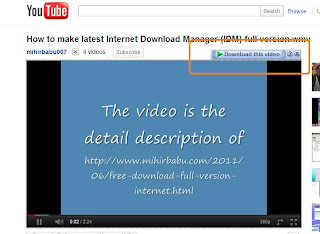
When any browser is integrated with IDM, then whenever we try to download something automatically it will download in IDM. No need to do any thing. If it comes in general download then the website may not support the down-loader  One of the most important feature of IDM is whenever we are playing any video or audio live streaming then an additional download option is shown at the side of the video screen. This will help us to download from you-tube.

How to integrate or add or remove any browser from IDM (Browser and system integration feature):
1. Open Internet Download Manager.
2. Click on "Downloads" on Menu bar of IDM.
3. Choose "Option"
4. A pop up window "Internet Download Manager Configuration" will be opened.
5. Navigate to "General" tab.
6. tick the check box "Use advanced browser Integration"
7. Now select the browsers that you want to integrate with IDM and tick on the check boxes.

It almost support all the browsers like Internet Explorer, Google chrome, Mozilla Firefox, Apple Safari, Opera, Netscape navigator etc..

Also See: List Of Top Ten Web browser for Windows

8. if you are using any other browser except the above then you can add that by "Add browser" option.
9. After selecting the browser you want to integrate. Apply the changes and press OK.
10. Now close all the open windows and Application and reboot your system .
After reboot you will find that IDM is associated with all the browser that you are integrated for download.

Other Similar articles that may interest you:
1. Keyboard shortcut keys on MS-office Power Point
2. How to Increase the torrent download speed
3. Add "Task manager" to" context menu of Windows
4. Add or remove desktop icon in windows
5. Break Administrator and user login Password in Windows
6. Change Boot-Screen, start up logo and log-in Screen in Windows
7. Definition of User Account in windows
8. Customize the power button action in windows Seven start menu
9. Serial key of typing master Pro V7.0 free download
10. What was new in Internet Explorer 9
Continue reading →
Friday, 21 October 2011

How to start private browsing in Google Chrome (Incognito Mode)

0 comments

Private Browsing (Incognito Mode):
This is the same as the private browsing feature in Mozilla FireFox. But here its name is "Incognito Mode".
The feature of incognito modes are:
1. Browser does not save your browsing history and the password.
2. Your downloaded file is present in the hard disk but the browser have not any download history.
3.All  new cookies are deleted after you close all  incognito windows that you've opened.
4. Changes  made to your Google Chrome  bookmarks and general settings while  in  incognito  mode are always saved.
    So it is always good to browse the Internet in incognito mode whenever you are browsing the Internet on a shared computer or in a cybercafe.
Also See: Latest Google Chrome Offline Installer free download
How to start Incognito Mode feature on Google Chrome:
    This process works on Windows, Mac, Chrome and Linux based OS.
To start this feature on windows, chrome and Linux based Operating system just press "ctrl+shift+N" simultaneously whenever you are accessing Internet from Google Chrome.
To start this feature on MAC Operating system just press "Command+shift+N" simultaneously whenever you are accessing Internet from Google Chrome.
  After pressing those keys a new window will be opened with incognito mode will be opened. Start browsing Internet on that window and enjoy the above described feature.
at the same time you also can access the Internet on google chrome in general window, that is opened previously.

Other similar articles that may interest you:
1. Create a boot able pen-drive for Windows Xp, Vista and seven
2. Avg Pc Tune up latest with key free download
3. Add change theme option as a shortcut to context menu
4. Free Download IDM with serial key
5. How to create an invisible folder so that others can not see
6. How to make Window 7 genuine
8. How to become a fast typist
9. Shortcuts to Create a new folder in Window 7
10. How to create a con folder without using Command Prompt
Continue reading →
Monday, 17 October 2011

How to start private browsing feature and restore the Private browsing confirmation Prompt in Mozila Firefox

0 comments
Private Browsing:
    This is an important feature of mozila firefox browser. By activating this feature anyone can access the internet from the mozila firefox and the browser do not save anything. It will not save anything means that it wont save the browsing history as well as not save any user name and password. So it is good to activate this feature whenever you are browsing the internet on any cybercafe or within a network of shared computer.

How to start Private browsing feature on Mozila Firefox:
   To start this just press ctrl + shift + P simultaneously whenever you are accessing internet from Mozila Firefox.
After pressing those keys firefox will ask a  confirmation message to start this.

Just Click on "Start Private browsing" . A new window will be opened in firefox for private browsing.Now Private browsing feature is enable on your browser.
To again come backto general browsing feature press ctrl + shift + P again.

This is an update of  http://www.mihirbabu.com/2011/10/how-to-start-private-browsing-feature_30.html
 Trouble shooting:
When ever you are staring private browsing feature on the confirmation prompt An check box (Do not show this message again) is available. If you accidentally select this option then whenever again you will start private browsing feature this dialogue box will not come. So that you will be not able to know wheter you are in private browsing or not. So you need to activate that warning messsage again.
To do so follow these:
1. Open firefox.
2. Now type "about:config" without quotes on the address bar and hit enter.
3. It will again show a confirmation prompt. Be careful that the check box there "Show the warrenty next time"  is selected.
4. Click on "I"ll be careful, I promise " button.
5. A configuration window will be open.
                   
6. Now type  "private" on the filter box.
7. You will find that the key "browser.privatebrowsing.dont_prompt_on_enter" is set to be true.
 If it is in true. Then it will not ask the confirmation prompt.
8. So change the value to false. To cahnge its value just double click on it.

How to start Private browsing automatically whenever we are opening firefox.
    To do so just change the value of "browser.privatebrowsing.autostart"  to true on step 7 of trouble shooting.

Other Similar articles that may interest you:
1. Add your own photo as a background image on USB Pendrive
2. Add Network Connection as a shortcuts in Mouse right click
3. Make a Windows Drive hidden and unsearchable
4. Create a folder with no name or with a blank space
5.  Working codes on Nokia Mobile
6. How to add/Remove user Accounts in Windows
7. Process to open Registry editor and Group policy editor
8. How to make Windows 7 Genuine
9.  How to create an invisible folder
10.  Latest version Safari browser free download
Continue reading →
Sunday, 16 October 2011

How to enable or disable "Open file - Security warning " message in windows Xp, Vista and Seven

1 comments

Generally this message appars during opening a file or application that is downloaded from internet. You can enable or disable the message by the following process

1. Open Control panel and navigate to Internet Properties option. Now choose "Internet Properties".
or Type "inetcpl.cpl" without quotes on RUN window or in the start search box And hit enter.
2. Internet Properties window will be open.
3. Now navigate to "Security" tab.
4. Choose "custom level".
5. A new window for "Security setting" will be opened.
6. Now search for "Launching application and unsafe files (not recommended)"
7. There you will find the three option. (Disable, enable and prompt .)
   By default prompt option will be selected.

8. Work of those options
Disable - This will not allow the file or application to be run.
Enable(not secure) - This will not show any warning before opening the application and file.
Prompt(recommended) - This will ask every time before opening those.
9. Choose the option of your own that what behaviour you want to see for those files and application.

Other Similar articles that may interest you:
1. Keyboard shortcut keys on MS-office Power Point
2. How to Increase the torrent download speed
3. Add "Task manager" to" context menu of Windows
4. Add or remove desktop icon in windows
5. Break Administrator and user login Password in Windows
6. Change Boot-Screen, start up logo and log-in Screen in Windows
7. Definition of User Account in windows
8. Customize the power button action in windows Seven start menu
9. Serial key of typing master Pro V7.0 free download
10. What was new in Internet Explorer 9
Continue reading →
Saturday, 15 October 2011

How to lock the Windows computer easily or shortcut keys for lock the computer

0 comments
This will describe you how easily you can lock your windows xp, Vista and Seven. You will able to lock your computer from your keyboard. Some keyboard defines a personal key to lock the computer. But the process is for those which do not have that key.

Press the   +  L simultaneously.After pressing those keys automatically windows will lock and ask you again to click on the user and also ask for password (if enable) to log in.If the fast user switching is enable for the user accounts then if those keys were pressed then it will redirect directly to the log in screen.(it is same as switch user option)

Other Similar articles that may interest you:
1. Replacer free download for Windows
2. Keyboard shortcut keys to lock Windows
3. How to choose the high quality video file from its name (tags)
4. How fatal error causes system crash
5. Keyboard hotkeys of Microsoft office front page
6. How to add a transparent logo to a video file
7. Change the default name of new folder to your own name
8. Add Program and Features to context menu
9. Add Copy/Move to Folder option to the right click of Selected item in Windows
10. Add your personal Information to the System property Window
Continue reading →
Friday, 14 October 2011

How to enable or disable permanently appear Menubar in Windows XP, Vista and Seven Explorer

1 comments

Menu bar is a region on the screen that contain also drop down menus. The purpose of menu bar is to provide some essential windows application like saving , editing, copy move, paste, help etc...
To enable or disable menu bar press "alt" on your keyboard. This will hide or show your menu bar temporarily.

1. Open Control Panel
2. Choose classic view for displaying control panel items.
3. Select folder Option. (Screen shot below will show you how the folder option icon is displayed)
Also Check: Add folder option As a shortcut to the Windows Context Menu.
4. On the pop up window "Folder option" Navigate to "view" tab.
5. There you will find an option "always show menus".

6. Just tick that option and apply the changes.
You will find the menu bar appear permanently on the window.
To disable the menu bar just unchecked  the option on step6.

Other Similar articles that may interest you:
1. Winrar Free download Full Evaluation copy in Various languages
2. Create a con folder without using command prompt (cmd)
3. Keyboard shortcuts to create a new folder in window seven
4. Latest opera browser free download for Windows, Linux and Mobile
5. How to download eBook from Google Books Search
6. how to enable Menu-bar appear permanently
7.. Show/Hiide Windows Version on desktop
8.  How hard disk results in system crash
9. Keyboard shortcut keys on MS-Office outlook
10. How to disable copy/move to usb or External device
Continue reading →
Thursday, 13 October 2011

How to create automatic login without asking for password in windows Xp, Vista and Seven

0 comments
This will change the windows log in process. After the boot screen no login screen will appear. Even if there is a password on your system, it will not ask for the password but log in automatically.
Process:-
1. Type "control userpasswords2" without quotes on RUN window or in the start search box and hit enter.
2. A new window "User Accounts" will be opened.
3. Now navigate to users tab.

4. Here you will find "Users must enter a user name and password to use this computer".
5. If you uncheck this then it will be logged in automatically. And if you check in this then it will ask for the password.
6. A dialog will allow setting a user and password to be used automatically.
7. Now apply all the changes and Press OK.
8. Now close all the open window and reboot your system and Enjoy the changes.

Other Similar articles that may interest you:
1. How to save any web page as pdf
2.  How to create an Automatic login without asking password
3. How to change processor name in windows
4. How bios setting may cause system crash
5. Working Shortcut keys for Windows XP, Vista and Seven
6. How to use VLC Media player as a Camera Software
7.  How to set your desired wallpaper as a Folder Background
8.  Add folder option as a shortcut to context menu
9. Create shortcuts for shutdown restart and logoff
10. How to create a folder with any name (con)
Continue reading →

How to enable or disable classic windows view in vista and seven

1 comments
Sometimes we face a problem as we are trying to install a theme or a customization pack (Linux or seven or vista or mac transformation pack) And it works good. But after uninstallation it changes the default views of vista or seven to windows classic. So here is the process to enable or disable classic windows view in any higher version of windows operating system.
Process:
1. Right click on My computer and select properties.
2. Now click on Advanced setting on the left side of the screen.
3. A pop up window will be opened.
4. Navigate to "Advanced Tab"
5. In the "Performance" option choose setting.
6. A pop up window with name "Performance option" will be opened.
7. Now navigate to "visual effect" Tab.
8. On the custom option scroll down the horizontal scroll-er .
9. At the bottom of this , you will find "Use visual style on windows and button"

10. If you tick this option , windows will add visual effect of your windows operating system and looks beautiful.
11.if you uncheck this then windows classic view option will be your default view.
Now you choose of your own that which style of view you want to make default.

Other Similar articles that may interest you:
1.  Break a Samsung Mobile Password without using 3rd party Software
2.  Group policy editor application free download
3.  Latest IDM with patch download free
4. AVG Antivirus 2012 free download full
5. How to take ownership of a file
6. Latest Maxthon Web browser free download
7. Avast Pro Antivirus with key free download
8.  How to enable/Disable Classic view in Windows
9.  What is System Property In Windows?
10. How Bad ram causes system crash or Hangs
Continue reading →

How to synchronize or update the computer time or clock with Internet time.

0 comments
Some times we find that our computer is not showing the perfect time. Then we can modify the time or time zone manually. But it is not sure that whatever we make changes in time is perfect. So it is better to synchronize or update the time from internet server. For this your system must be connected to internet.
To update the time from internet follow these.
1. Select on time displayed at the right side of the taskabar.
2. A window displaying calender and clock will be opened there.
3. Now select change date and time setting.
4. A new window will be opened.
5. Navigate to "internet time" tab.
6. Now click on "Change setting"
7. A new window will be opened.
8. Now tick on synchronize with an internet server.
9. Now choose from which server you want to update your time on the server box.
10.Now click on update now.

It will ask you to for waiting some time and after some time you will see the changes. Now apply all the changes and press OK.

Other Similar articles that may interest you:
1. Add your own photo as a background image on USB Pendrive
2. Add Network Connection as a shortcuts in Mouse right click
3. Make a Windows Drive hidden and unsearchable
4. Create a folder with no name or with a blank space
5.  Working codes on Nokia Mobile
6. How to add/Remove user Accounts in Windows
7. Process to open Registry editor and Group policy editor
8. How to make Windows 7 Genuine
9.  How to create an invisible folder
10.  Latest version Safari browser free download
Continue reading →

Followers